Set up a project tracker in 5 steps
You can build a genuinely working project tracker in Notion in one sitting — roughly twenty minutes of setup plus a first week of use. The version below uses only built-in database features on the Notion free plan, so there is no add-on cost and nothing to install.
The honest framing: a tracker is only as good as its review habit. The structure you build here gives you the container; the weekly habit of updating statuses and moving cards is what makes it alive. Build first, then commit to the 5-minute daily glance and the 10-minute weekly review.
Steps
1. Create a database called Projects
Create a page and insert a Table database named Projects. A database (not a plain page) matters because every project becomes a row that other structures can link to. Name it, set its icon, and move on — do not decorate.
2. Add status, due date and owner
Add three properties to the Projects database: a Select called Status, a Date called Due date, and a Select (or Person) called Owner.
- Status options: Not started, In progress, Blocked, Done. Five statuses is the ceiling; more and you are maintaining the taxonomy instead of the projects.
- Due date: one date per project row. Keep it real — a fake due date silently untracks itself.
- Owner: one name per row, so every project has a single accountable human.
3. Create a linked Tasks database
Create a second database called Tasks, and add a Relation property that links to Projects. This is the heart of the system: tasks live in their own database but every task row points at a project. Without this, you end up with tasks trapped inside project pages, which is exactly the flat-folder problem a tracker is supposed to solve.
Inside Tasks, add the same useful trio: Status (To do, Doing, Done, Blocked), Due date, and Owner. A project with one owner and many task owners reflects how real work splits.
4. Add views: Kanban, Calendar, Table
Click "New view" on the Tasks database and add three views, each for a different question:
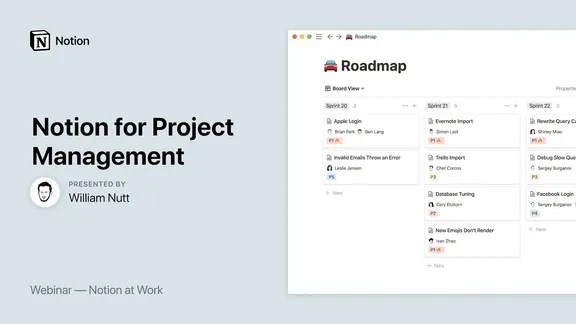
- Kanban — group tasks by Status. This is your "what's moving today" screen.
- Calendar — show tasks by Due date. This is your "what's due this week" screen.
- Table — the raw edit view, fastest for quick property changes.
Each view is a different lens on the same data, not a copy of it — that is the Notion superpower and the reason a tracker here beats a folder of notes.
5. Filter tasks by project
Add a second Kanban or Board view, and filter it by the Relation you built in step 3 — pick a specific project to see only its tasks. Then add a "My tasks" view filtered by Owner = you. These two filtered views are the ones you will actually open daily, so put them first in the view list.
A note on properties
Six to seven properties cover ninety percent of real project work: Status (select), Due date (date), Owner (select or person), Project (relation), Priority (select: Low, Medium, High), Notes (text), and optionally Last review (date). Skip the clever stuff on day one — rollups, formulas and linked filters are fun and almost always added too early.
The one formula worth having later is a simple overdue check on the Due date property, so late tasks surface visually. Write it once you have used the system for two weeks and can feel what is missing; building formulas before you have a habit is how trackers become museums.
Views worth keeping
Two or three views beat eight. The ones that earn their keep: a Kanban grouped by Status ("what's moving"), a Calendar of due dates ("what's next"), and a "My tasks" filter (owner = you). Delete every view you have not opened in two weeks — view clutter is real cognitive tax, and it is the fastest thing to feel proud and wrong about.
When to stop building
You are over-engineering the moment you add a view you will not open, a property for an edge case you invented, or a styling pass before the first real week of use. The system's job is to make the next action obvious, not to look complete. Honest rule: after the first week of real use, change at most one thing.
A note on expectations: the first week will feel manual. Updating statuses and owners is the actual work of tracking — the template just makes it visible. If a task has no owner or no date, that is information, not a bug.
If you would rather skip the twenty-minute build, the Notion Systems for Creators is a finished project-and-client workspace — you duplicate it, delete the sample data, and start with real projects on day one.