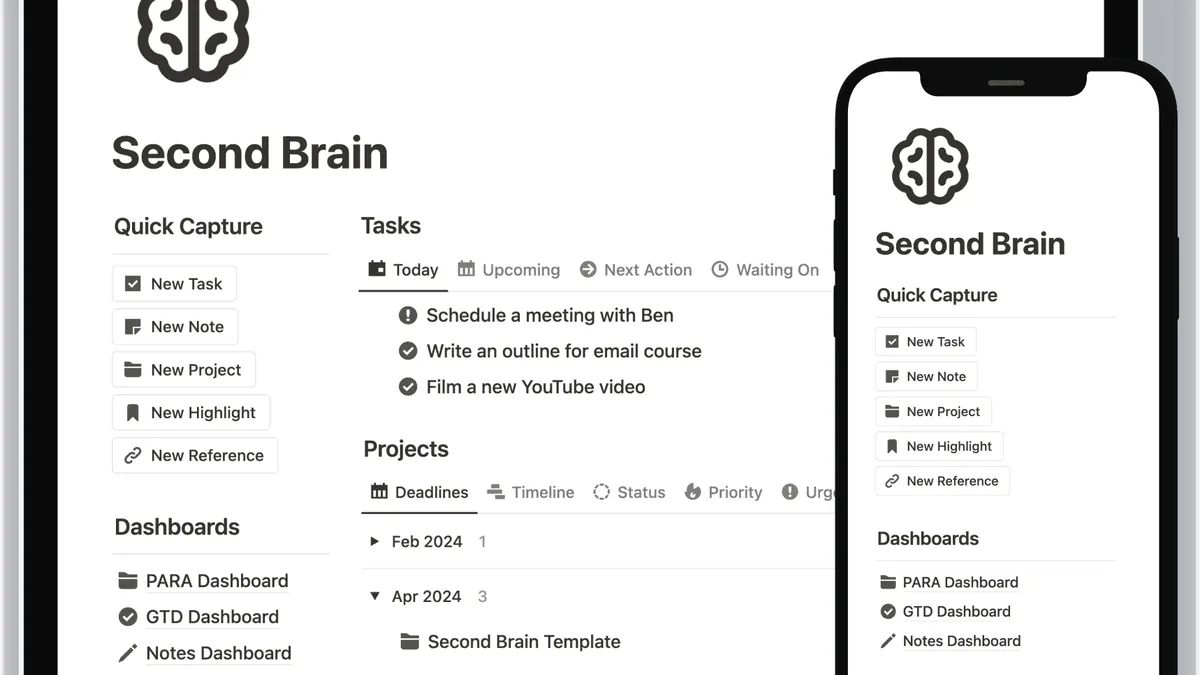
How to Build a Notion Second Brain (Setup Guide)
TL;DR — A Notion second brain is one workspace where every note, clip and idea lands in a single inbox, then gets sorted into four PARA buckets: Projects, Areas, Resources and Archive. This guide builds that system in seven steps. You'll finish with five databases, one dashboard, and a 20-minute weekly review that keeps it alive.
Short on time? Get the done-for-you version
Grab Notion Systems for Creators ($15.00) and skip straight to results.
Get Notion Systems for Creators →A second brain is an external system that stores what you don't want to keep in your head — notes, links, half-formed ideas, project details — in a structure you can actually search. Tiago Forte named it in his 2022 book Building a Second Brain, and the layout he recommends is PARA: Projects, Areas, Resources, Archive.
Here's what exists on your screen when you finish this guide: an Inbox database for capture, four PARA databases behind it, a dashboard page with a linked view of each, and a weekly review template you click every Friday. Five databases, two pages, about 90 minutes of setup. I rebuilt mine in June 2026 after my old folder tree hit 400 pages and search stopped being useful — the rebuild took one Sunday afternoon and I haven't lost a note since.
What is a Notion second brain?
A Notion second brain is a single workspace organized so that everything you capture has one obvious home, and every home is a database you can filter. Not folders inside folders inside a folder you forgot about. Databases: rows with dates, statuses, tags and relations, so you can ask the system questions like "what's due this week" or "what did I save about pricing" and get an answer.
PARA is the sorting rule. Projects are things with a finish line — launch a course, ship a client site, move apartments. Areas are ongoing responsibilities with no end date — your health, finances, the newsletter you publish every week. Resources are topics you'll want later: writing references, contract clauses, tool reviews. Archive is where finished projects and dead areas go so they stop cluttering the active views.
Here's where most guides get this wrong: they hand you fourteen databases on day one, and you open none of them by Thursday. Five databases is the ceiling for a solo setup. Anything more and the system becomes a hobby instead of a tool. Notion earns its place here for one reason — a database can relate to another database, so your project can point at its area, and its notes can point at the project. Folders can't do that. If you're still weighing Notion against the alternatives, the honest trade-offs live in our remote work productivity tips — capture habits matter more than the app you capture into.
The 7 building blocks, mapped to Notion
Seven blocks. Five are full-page databases, two are ordinary pages. This is the entire structure — nothing else gets built in week one.
| Block | Notion structure | Key properties | Default view |
|---|---|---|---|
| 1. Capture inbox | Inbox database (full page) | Captured (date), Type (select), Source (URL), Processed (checkbox) | Table → "Unprocessed", filter Processed is unchecked |
| 2. Projects | Projects database | Status (select), Due (date), Area (relation), Next action (text) | Board grouped by Status |
| 3. Areas | Areas database | Cadence (select), Status, Projects (relation) | Table → "Active only" |
| 4. Resources | Resources database | Tags (multi-select), Type (select), Added (date) | Gallery sorted by Added |
| 5. Archive | Archived checkbox on Projects + Areas | Archived (checkbox), Archived date (date) | Table filtered Archived is checked |
| 6. Weekly review | Weekly Review page + database template | Week of (date), Wins (text), Blockers (text), Next 3 (relation) | Template button → new page each Friday |
| 7. Dashboard | Top-level Second Brain parent page | None — linked views only | Home page, four linked views + inbox on top |
Two structural calls worth stealing. Archive is a checkbox, not a sixth database — archiving should take one click, and a filtered view does the rest. And the dashboard holds linked views, never copies: the same databases, seen from the front door.
How do you set it up? Seven steps
Total build time: about 90 minutes if you don't decorate. Resist decorating. My first attempt in 2024 died of cover images — two evenings spent picking colors and zero notes captured.
- Create the shell. Make one top-level page called Second Brain. Inside it, add five empty pages: Inbox, Projects, Areas, Resources, Dashboard. Nothing else lives at the top level.
- Build the Capture Inbox. Turn the Inbox page into a database with four properties: Captured (date, default today), Type (select: note, link, idea, task), Source (URL), Processed (checkbox). This is the only place you're allowed to dump things unsorted. If you want AI in the capture loop — auto-summarizing a clipped article into two lines, say — our AI tools for productivity roundup covers which ones actually save the minutes.
- Build Projects. New database: Status (select: Not started, Active, Blocked, Done), Due (date), Area (relation to Areas — create it even though Areas is still empty), Next action (text). Next action is the property that makes a task list work: every active project shows the literal next physical step.
- Build Areas. One row per ongoing responsibility: Health, Money, Newsletter, Clients. No dates. If you gave it a deadline, it was a project — move it. Relation back to Projects so each area lists what's live inside it.
- Build Resources, then wire Archive. Resources gets Tags (multi-select), Type, and Added. Then add an
Archivedcheckbox to Projects and Areas and save a filtered view where Archived is checked. Archive is where a project goes the day after it ships — not three months later, never. - Build the Dashboard. On the Second Brain page, drop four linked database views: Inbox (unprocessed filter), Projects (board), Areas (active only), Resources (gallery). One screen, everything live. This is the page you open; the databases underneath are plumbing.
- Create and schedule the weekly review. Make a page template with eight checkboxes and a "Next 3" relation, then schedule it — Friday, 4pm, recurring calendar event. Step seven is the one everybody skips, and it's the one that decides whether this thing is alive in December.
Run the process once: capture five things into the Inbox, then sort them — each item becomes a task in a project, a note in Resources, or gets deleted. If an item sits unsorted for a week, the inbox is working and you aren't. Twenty seconds per item, and the whole thing stops feeling like accounting.
Which templates should you install first?
You can build all seven blocks by hand — that's what the steps above do. If you'd rather skip the assembly, Notion Systems for Creators is our own pack of pre-wired Notion databases for creators: the relations, filters and views above already exist inside it, so you'd start at step six instead of step one.
Either way, these are the templates worth having in place before day seven, with honest set-up times:
| Where it lives | Template / pattern | What it does | Set-up time |
|---|---|---|---|
| Inbox | Quick-capture database template | One click → new row with today's date, empty URL, one-line summary | 5 min |
| Projects | Project page template | Brief, milestone checklist, linked tasks, deadline, next action | 10 min |
| Areas | Area page template | Status rollup, linked active projects, "what good looks like" notes | 8 min |
| Resources | Clip template | Source URL, three-line summary, two tags, date added | 5 min |
| Weekly review | Review page template (button) | Eight checkboxes: inbox zero, projects triaged, archive pass, next week's 3 | 10 min |
| Dashboard | Linked-view home page | Inbox, Projects, Areas and Resources on one screen, no copies | 15 min |
Total: about 53 minutes of template work, which is most of the 90-minute build. Templates are the part you reuse; database schemas are the part you rarely touch.
The mistakes that kill a second brain
- Building fourteen databases in week one. Structure you haven't used yet is debt. Five databases, seven blocks, stop.
- Letting the Inbox become a graveyard. An inbox with 200 unsorted items is a to-do list that hates you. The fix is the weekly review, not a new app.
- Confusing a project with an area. "Publish the newsletter" is an area — it never ends. "Get the newsletter to 1,000 subscribers by March" is a project. The confusion is why half of PARA setups feel useless: nothing ever completes, so nothing feels done.
- Tagging instead of filtering. Twelve tags per note means search and filters both break. Two or three tags, max. The database's built-in filters do the rest.
- Archiving late — or never. Finished projects left in the active board are noise. Archive the day after completion, and the board stays readable.
- Skipping the dashboard. If opening the system takes three clicks through the sidebar, you'll open something else instead. The dashboard is the whole point of step six.
How often should you run the weekly review?
Once a week, same day, 20 minutes. Any more often and it's procrastination wearing a productivity costume; any less often and the inbox quietly rots. The Friday-afternoon slot works because the week's context is still fresh and nothing productive is happening anyway.
The review itself is short:
- Inbox (5 min): sort every item into a project, an area, resources, or delete. Zero is the target, "under ten" is acceptable.
- Projects (5 min): update statuses, move dates that slipped instead of hiding them, and rewrite the Next action on every Active project.
- Archive (3 min): check anything finished. One click each.
- Next week (7 min): pick three outcomes, drop them into the review page, and relate them to their projects.
That last block is where most setups fail: capture is easy, sorting is mechanical, but choosing next week's three is a decision — and decisions get deferred forever if the review page doesn't exist. Tie it to an event that already happens, the way our remote work productivity tips tie a start ritual to the first coffee of the day. Same trigger, same time, every week.
Frequently asked questions
How long does it take to build a Notion second brain?
About 90 minutes for the skeleton — five databases, one dashboard, one template — if you don't touch colors or covers. Expect it to feel natural after two or three weekly reviews, so budget roughly one build session plus one week.
Is Notion the best app for a second brain?
Notion is the best fit when your second brain has to hold projects, deadlines and links between notes — that's what its databases and relations do that plain folders can't. If your system is only linked reading notes with no due dates, a plain-file tool like Obsidian will feel lighter and never lose your data. Choose on that one question: do dates matter?
What's the difference between a project and an area in PARA?
A project ends. It has a finish line, a deadline, and a moment where you can mark it Done. An area never ends — it's a responsibility you maintain: health, money, a newsletter you publish forever. If you can't picture the project being "finished," it's an area.
Should I keep tasks in my second brain or in a separate to-do app?
Keep them in Notion, inside the Projects database, or you'll maintain two systems and trust neither. A task without a project is just a wish — the relation between Tasks and Projects is the whole reason to use a database instead of a checklist app. Separate to-do apps are only worth it when another person shares your queue.
How do I stop my Notion second brain from becoming a mess?
Two rules: everything enters through the Inbox, and the Inbox gets sorted once a week. Mess is not a structure problem — it's an unsorted-inbox problem plus a missed-review problem. If both rules hold, the system stays clean without any further maintenance.
Key Takeaways
- A Notion second brain = 7 blocks: Inbox, Projects, Areas, Resources, Archive, Weekly Review, Dashboard — five databases and two pages.
- PARA is the sorting rule: Projects end, Areas don't, Resources wait, Archive catches the rest.
- Archive is a checkbox on Projects and Areas, not a sixth database — one click, filtered view does the rest.
- The build takes about 90 minutes; templates account for roughly 53 of them.
- Nothing survives without the 20-minute weekly review — inbox to zero, projects triaged, three outcomes picked for next week.
- Start with five databases. Add nothing until the system has run four Fridays in a row.